The platform
TechUltra Upgrades: the Odoo upgrade engine we built for ourselves
After 400+ Odoo projects we stopped repeating the same upgrade fixes by hand. TechUltra Upgrades is an Odoo app that runs the whole upgrade on a copy of your database: hops, auto-heal, checks and test instances.
- Draft
- Ready
- Running
- Done
Hop path
- 17
- 18
- 19
- 20
▸ LIVE TERMINAL
✓ preflight PostgreSQL 16 OK · docker hop images 18, 19, 20 OK
✓ restore source dump restored to trial DB (live DB untouched)
✓ hop 17→18 done · 214 modules updated
⟳ auto-heal bad XML-ID rename detected · patched script · retrying hop
✓ hop 18→19 done after retry
› hop 19→20 running · custom modules detached for hop
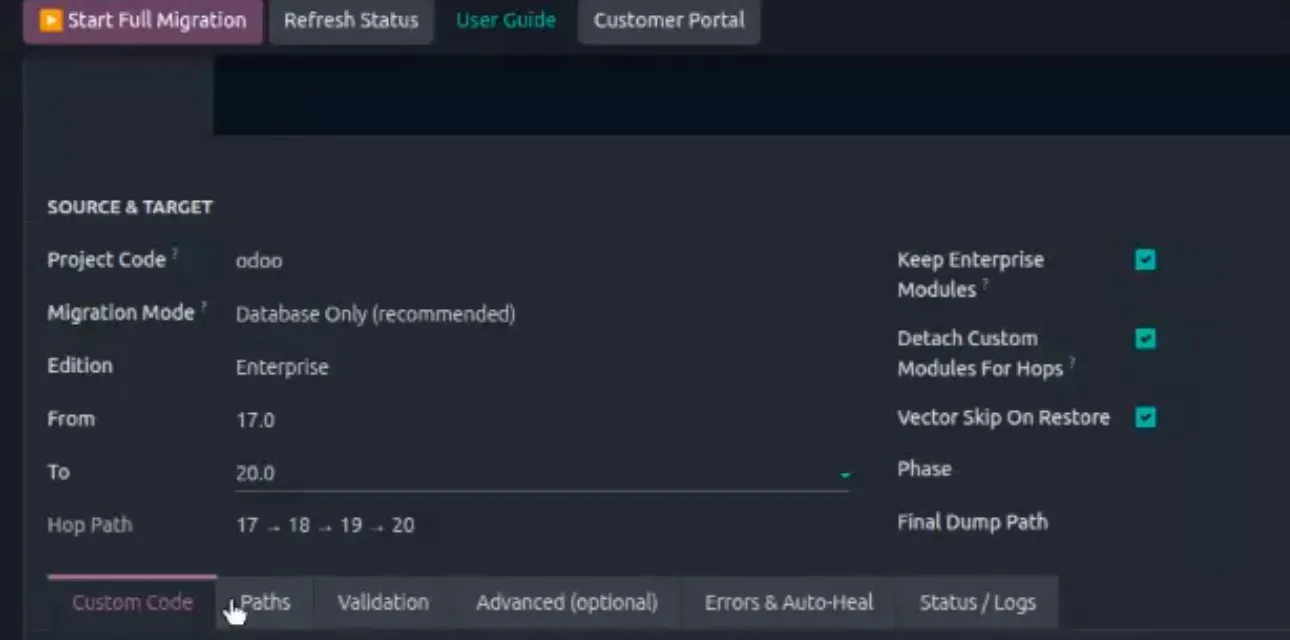
Illustrative run based on the TechUltra Upgrades project screen
Three steps
Set source and target. Click Start Full Migration.
- 1. Configure. Project code, edition, From and To versions. Farm defaults come from Settings.
- 2. Run. Dump → temporary databases → hops → migrated dump, streamed to the live terminal.
- 3. Validate. Open the Validation tab, then open the test instance.
Safety by design: the platform never upgrades your live Odoo database. It works only on a copy, and trial databases can't be named prod, production or live.
Product walkthrough
Watch it in action
Features
Everything an Odoo upgrade needs, in one Odoo app
Multi-hop in one run
Pick From and To; the platform builds the hop path (e.g. 17 → 18 → 19 → 20) and runs every hop in sequence with a checkpoint after each.
Errors & Auto-Heal
A repair library built from hundreds of real upgrades detects known failures such as bad XML-ID renames, orphan views and broken xpaths, patches them and retries the hop automatically.
Live terminal
Watch restore, preflight, hop and module lines stream in real time. Every phase change is logged to the project chatter.
Custom code: two modes
Database Only (recommended) loads your already-ported addons from a local path. Code + Database fetches from GitHub and rewrites code automatically.
Detach custom modules for hops
Custom modules are soft-detached while standard data migrates, so one broken addon can't block the whole upgrade.
Keep Enterprise modules
Enterprise apps and their data are preserved across every hop, with Community and Enterprise companion scripts checked at preflight.
One-click test instance
Open a private test instance of the upgraded database straight from the project. Refresh it after each rebuild round.
Customer portal
Your team follows progress, reports issues and approves go-live from a portal, without needing server access.
Filestore integrity
Attachments are verified blob by blob after migration; missing or corrupt files are reported, not silently dropped.
Deployment
Run it where your data is allowed to live
Hosted
Upload an encrypted dump; we run and test on TechUltra servers.
Private: Docker
The platform runs on your own server. Your data never leaves your infrastructure.
Private: SSH
We install and operate the platform on your infrastructure for you.
How long does an Odoo upgrade take?
+
The automated migration itself runs in hours, not weeks. Most of the calendar time is your team testing the upgraded copy. Typical end-to-end timelines are 1–2 weeks for a standard setup, 3–6 weeks with normal customisation, and 6–12 weeks for heavily customised databases. The free assessment gives you an exact timeline and downtime estimate.
Can we upgrade directly from Odoo 16 to Odoo 20?
+
Yes. You upgrade in one project. Internally TechUltra Upgrades runs and checks every version hop (16→17→18→19→20) with resumable checkpoints, but you only test the final Odoo 20 result.
What happens to our custom modules?
+
Custom modules are ported to the target version using rule-based rewrites plus AI-assisted porting, then reviewed by senior Odoo engineers. You receive the changes as a reviewable pull request, and automated checks confirm every module installs and its data survives.
How is this different from the official Odoo upgrade service?
+
Odoo S.A.'s upgrade service migrates standard Enterprise data. Custom modules, third-party apps, testing and fixing remain your responsibility. TechUltra Upgrades covers the full job: Community and Enterprise, custom and third-party modules, data reconciliation, test rounds and go-live.
Do you upgrade Odoo Community edition?
+
Yes. TechUltra Upgrades supports both Odoo Community and Odoo Enterprise, including Community databases that the official Odoo upgrade platform does not cover.
See TechUltra Upgrades run on your database
Run a read-only scan of your database. You get a module-by-module risk report, a timeline, a downtime estimate and a quote based on your complexity. No obligation.